Samsung install safety
Samsung Auto Blocker stopped the Indian Rummy APK install: what should you check?
A blocked install is a protection signal. Identify the control and verify the file before deciding whether the app belongs on this phone.
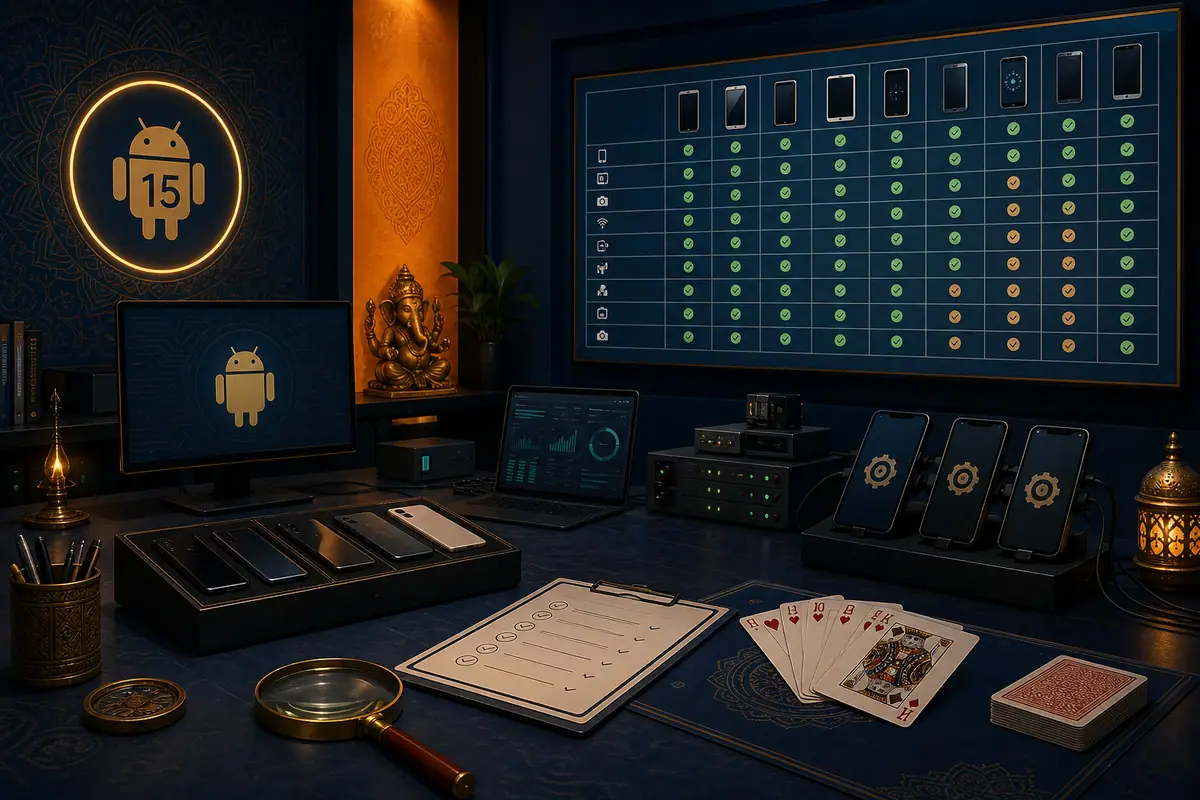
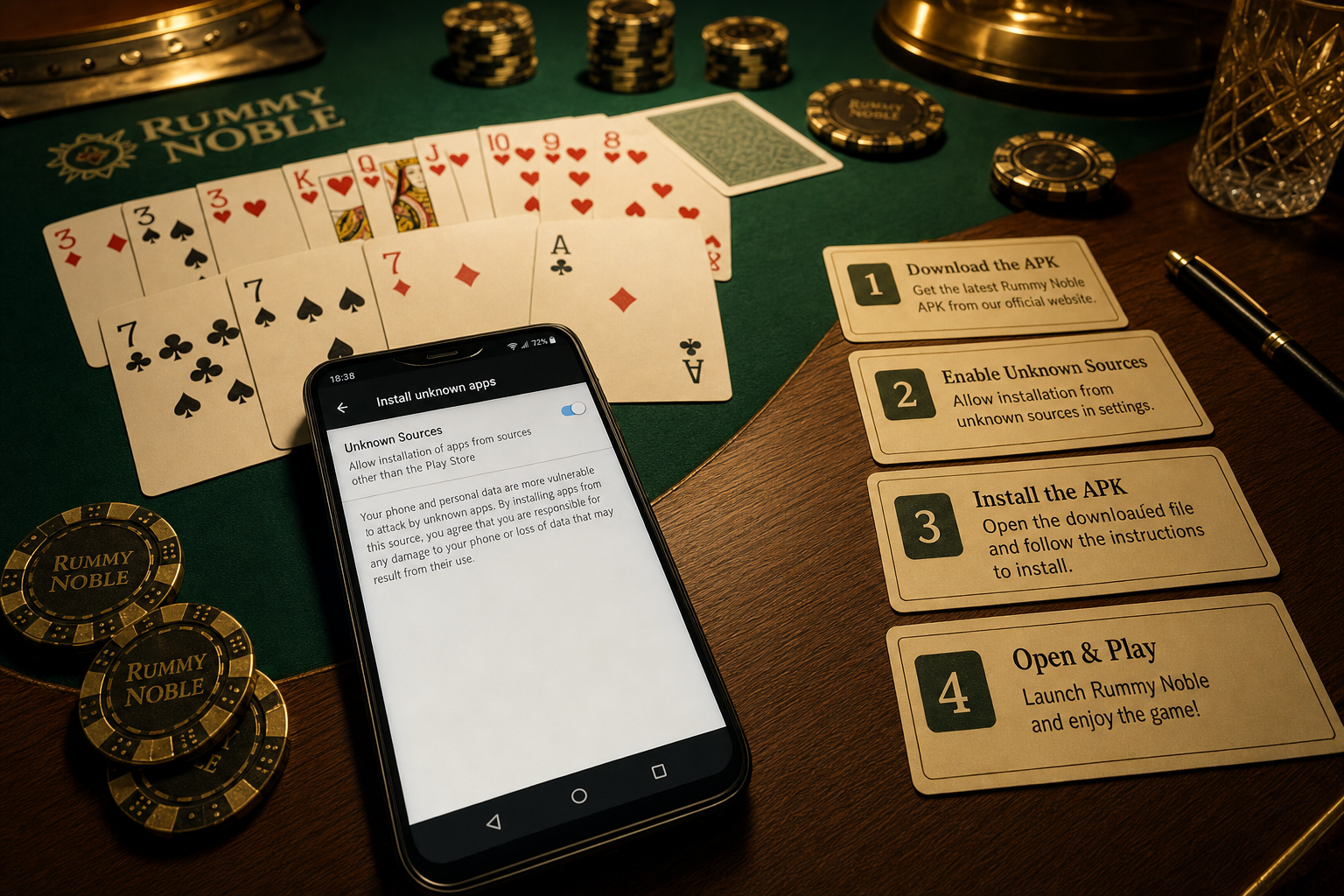
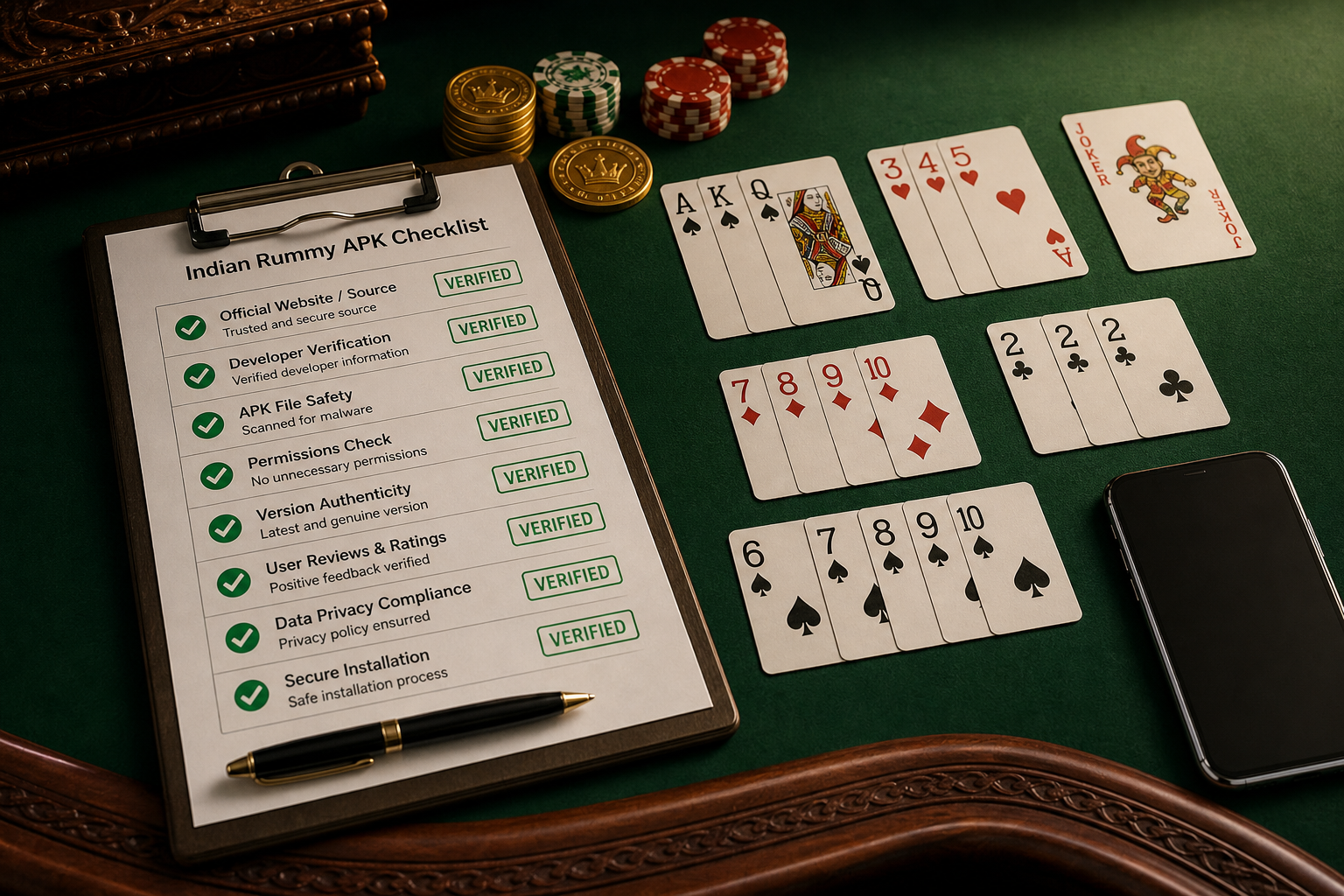
Direct answer: Stop the install and record the exact Samsung message. Confirm that Auto Blocker—not a browser download error, Play Protect, or a work policy—made the decision. Then verify the APK’s publisher route, expected package, version, and checksum. Do not disable protection merely to force a Rummy APK onto the device.
Identify the blocker first
| Message or location | Likely control | Safe next step |
|---|---|---|
| Auto Blocker named in Samsung settings | Samsung device protection | Read Samsung’s explanation and verify source |
| Play Protect warning | Google scanning | Stop and review the warning details |
| “Blocked by your admin” | Work or school policy | Contact the administrator |
| File never finished downloading | Browser or network | Check file size and HTTPS route |
Preserve useful evidence
- Take a screenshot that includes the full warning, not only the final button.
- Note the Galaxy model, One UI version, Android version, and date.
- Record the downloaded filename and the page that supplied it.
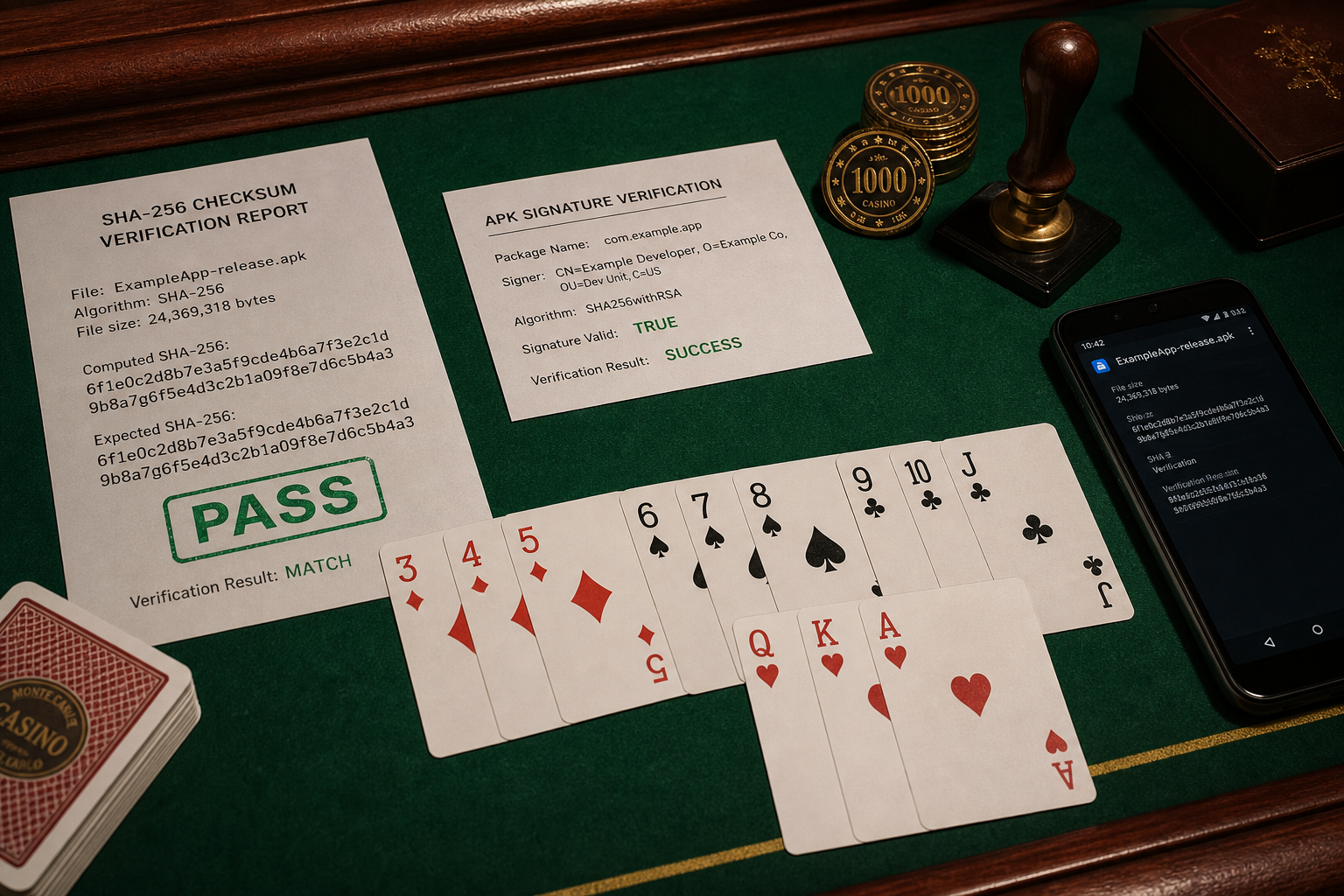
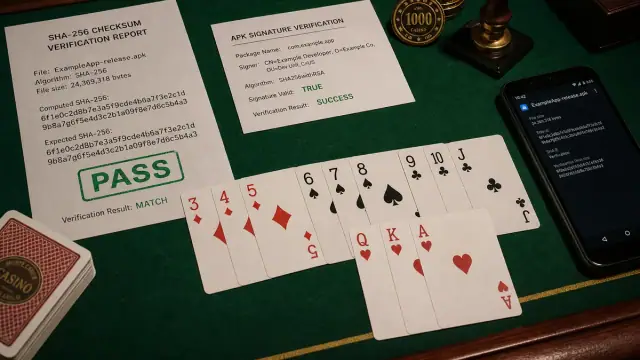
- Compare the expected SHA-256 value only with an independent publisher record.
- Keep passwords, OTPs, banking details, and recovery codes out of any support message.
What the warning does not prove
Auto Blocker stopping an unknown-source install does not by itself prove that a particular file contains malware. It also does not prove the file is safe. It means the device’s protection policy rejected the route or activity. The correct response is evidence review, not repeated attempts through different browsers or renamed copies.
Stop conditions
- The download came through an unrelated mirror, shortened link, chat attachment, or banking-themed page.
- The publisher identity, package name, or checksum cannot be independently matched.
- The page tells you to turn off several protections or grant Accessibility, Device Admin, SMS, contacts, or screen-control access without a clear feature need.
- The phone belongs to an employer, school, or family administrator whose policy you cannot change.
Safe support route
For a personal Galaxy device, use Samsung’s own support material to understand the setting and ask the app publisher why the build is distributed outside a recognized store. For a managed device, ask the administrator; do not attempt to remove management, hide the installer, or transfer the file through another profile.
If the evidence checks do not agree, delete the incomplete or unverified copy and keep the warning screenshot. A clean re-download is appropriate only from the expected HTTPS route after the publisher details are confirmed.
Source
Samsung Support’s Auto Blocker guide explains the feature and its protection role. Menu names and capabilities can vary by One UI version and region.