Install repair
Android says “App not installed” after an update: package conflict checks
The message is not proof that a file is bad or that uninstalling is safe. First preserve recovery evidence, then check whether the update belongs to the installed package.
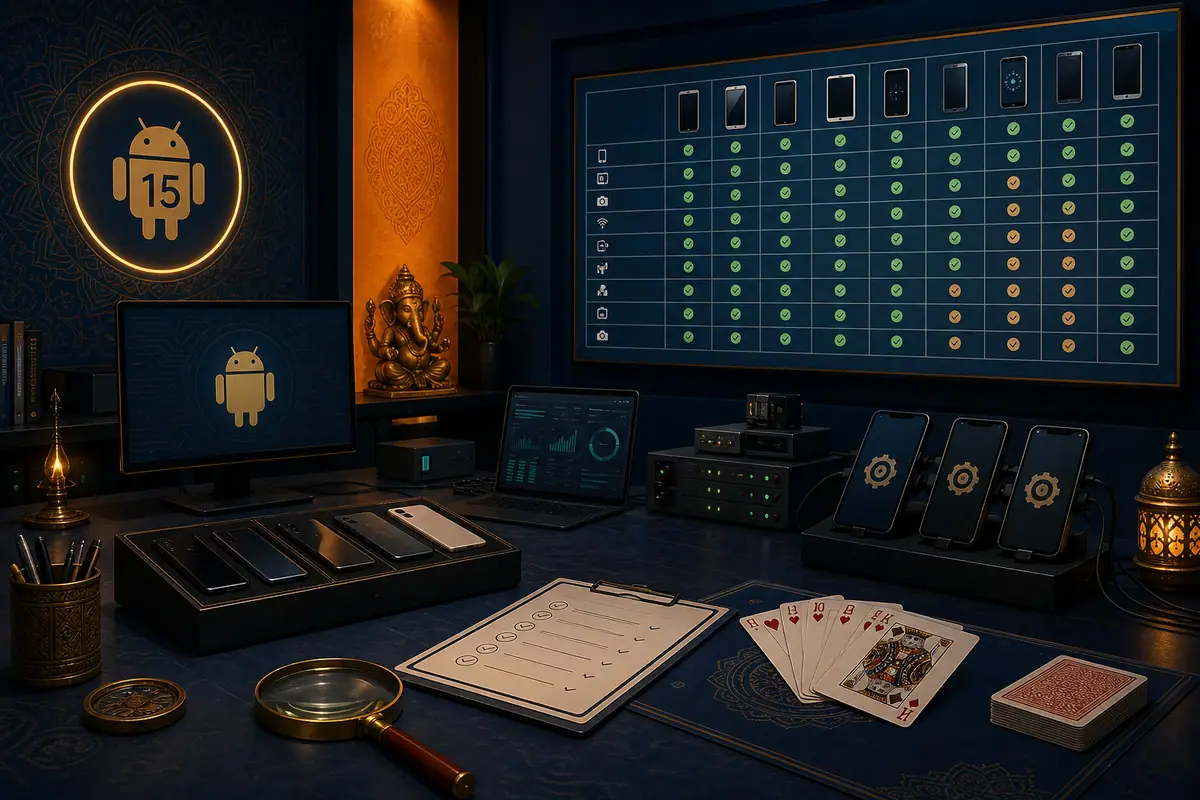
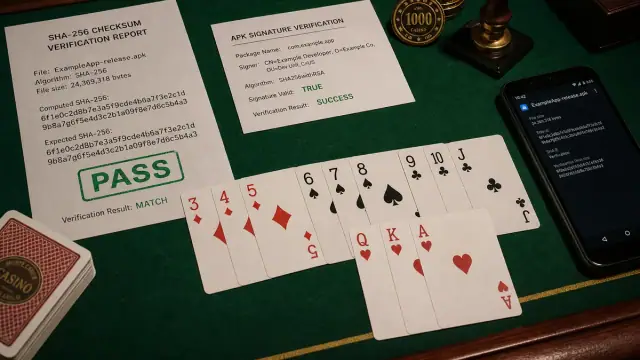
Direct answer: Stop repeated installs, keep the exact error screenshot, check free storage and Android version, then compare the old app’s package/source evidence with the update. An update from a different signer or package family cannot safely replace the installed app.
Safe order of checks
- Save the current app version, account-recovery route and the error screenshot.
- Remove duplicate downloads from the Downloads folder; do not delete the installed app yet.
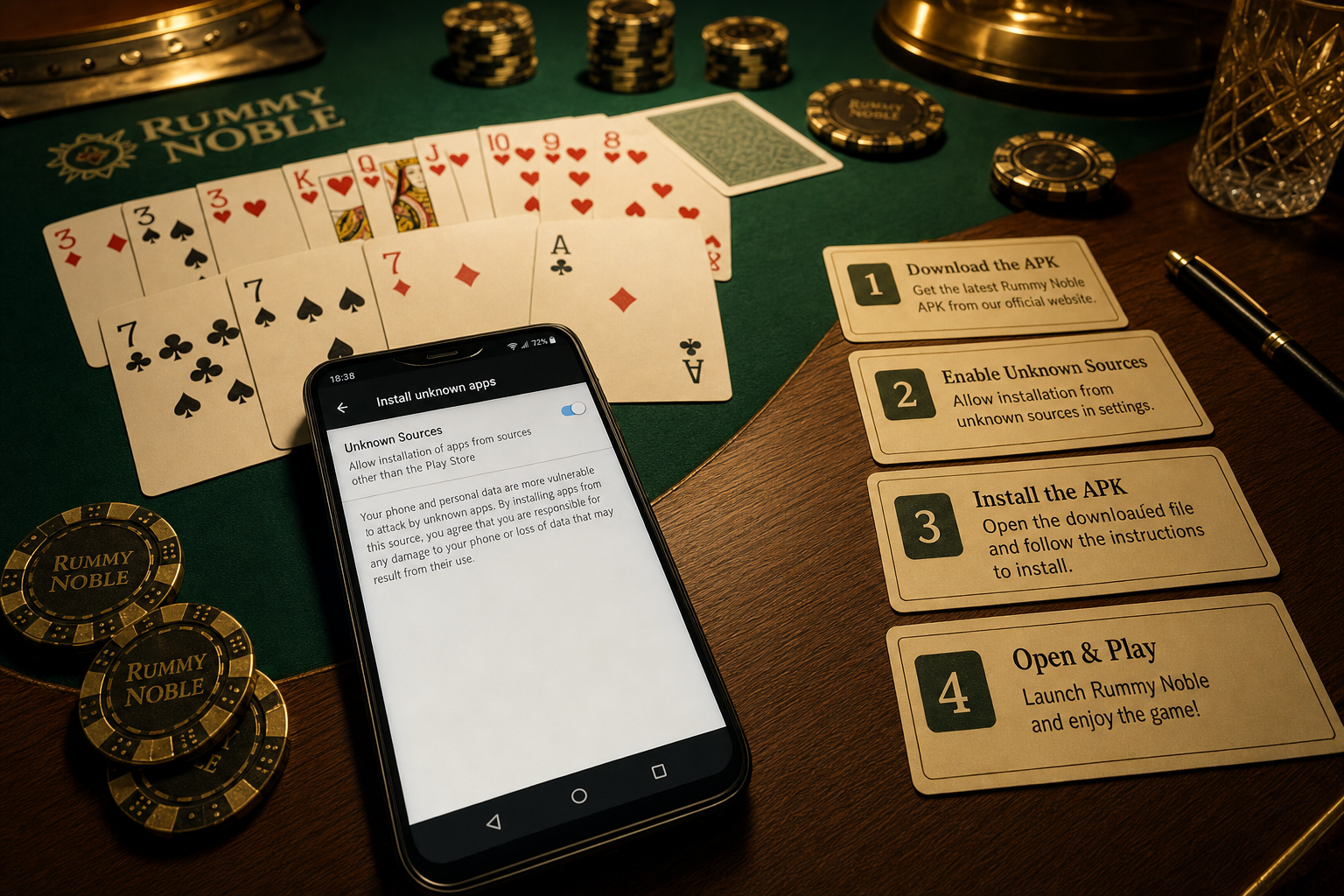
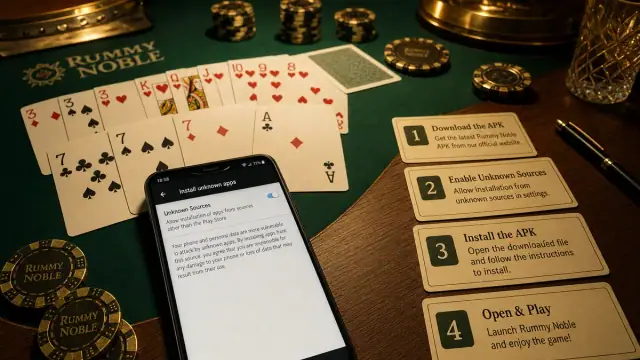
- Check available storage and whether Android blocked the installer.
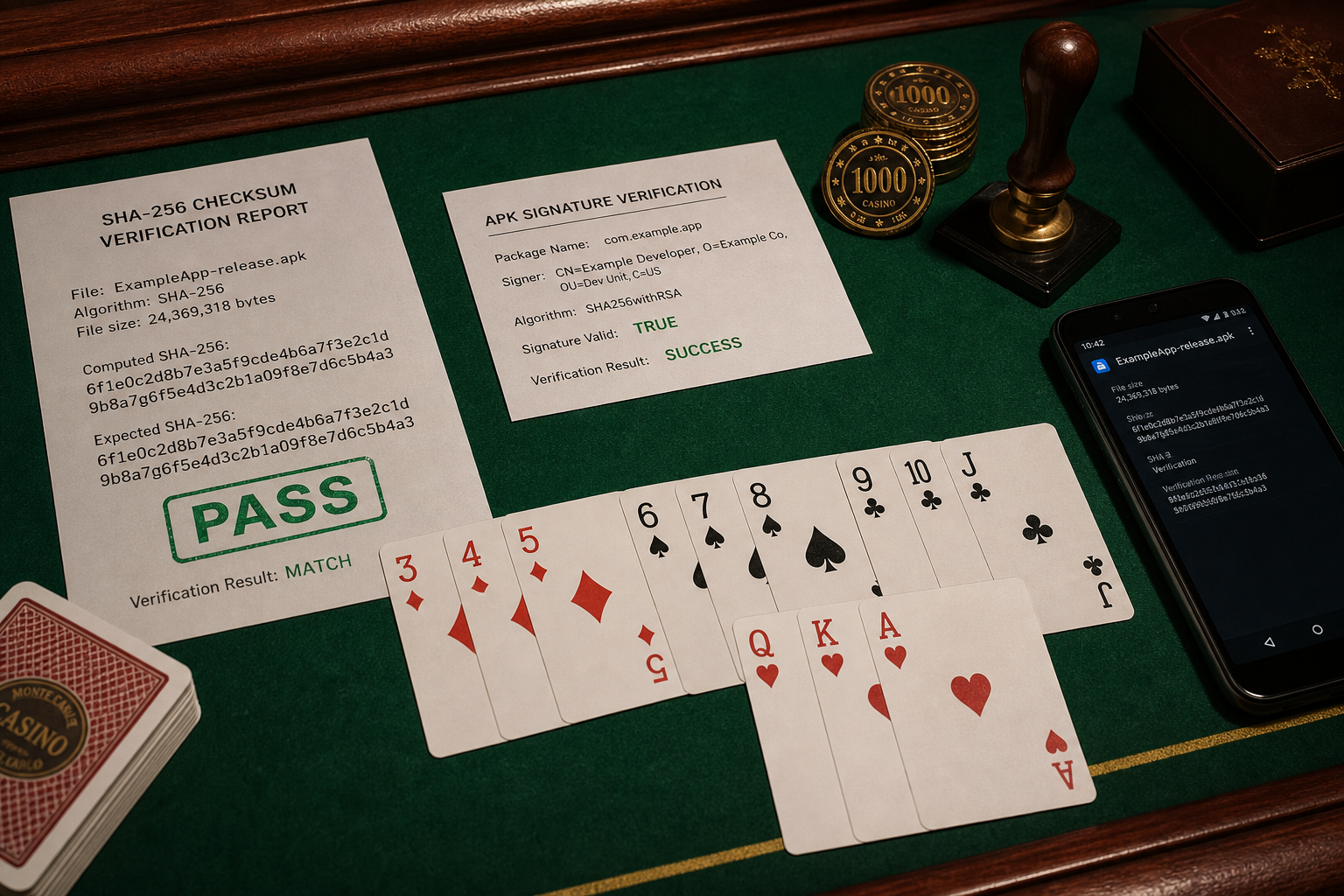
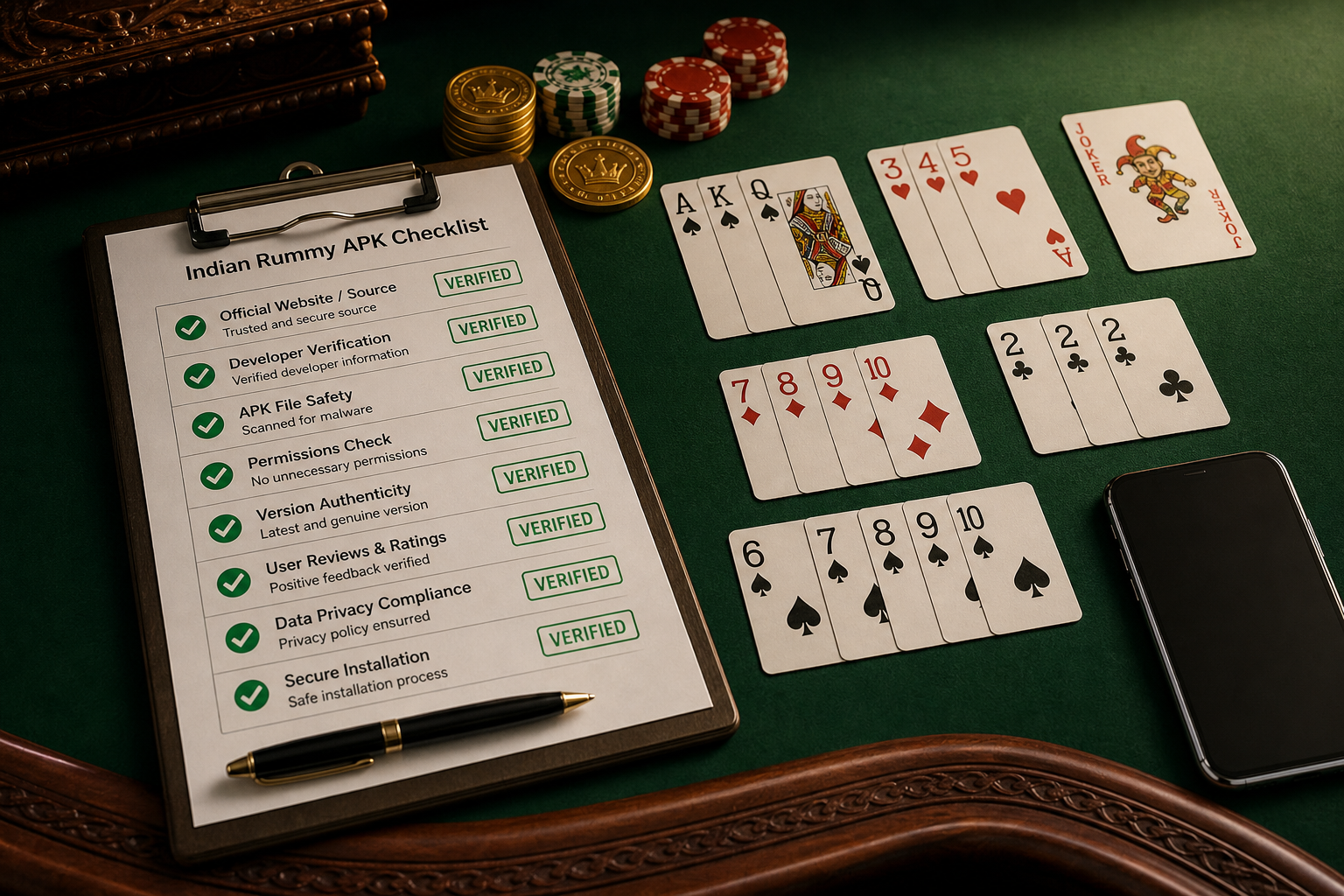
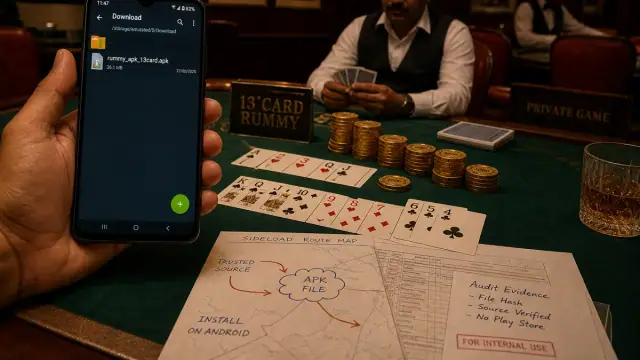
- Confirm the file came from the expected publisher route and has not been renamed by a mirror page.
- If package continuity cannot be confirmed, contact the publisher with device model, Android version and file details.
Why reinstalling first is risky
Removing the old application can remove local session evidence while doing nothing for a signature mismatch. Never share an OTP, password, payment credential or banking details with anyone who claims to “unlock” an update.
When to stop
Pause the install if the page promises instant cash, demands accessibility or contacts access without a stated feature, or redirects through unrelated banking branding. Those are review signals, not troubleshooting steps.