Update recovery
Rummy app keeps stopping after an update: a safe recovery order
Repeated crashes after an update can come from incompatible app data, WebView, storage, battery policy or a mismatched package. Treat the crash as evidence, not as a reason to install random copies.
Direct answer: Record the crash message and current app version, restart the phone, update Android System WebView and Chrome from the device’s trusted store, then check storage and battery restrictions. Clear cache once; do not clear data or uninstall until account recovery and package continuity are recorded.
Recovery sequence
- Save a screenshot, Android version, device model and whether the crash happens at launch or after login.
- Check free storage and install pending system updates. A full device can make a healthy update unstable.
- Update Android System WebView and Chrome through the device’s normal update channel, then restart.
- Use App info to force-stop once and clear cache once. Avoid repeated clear-data actions.
- Check battery optimisation and background-data restrictions for the app without granting unrelated permissions.
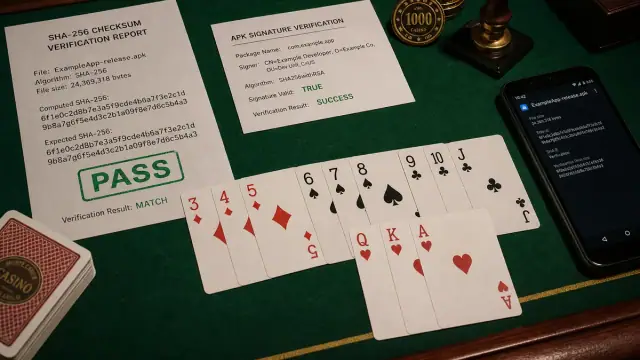
- If the crash began exactly after a file replacement, compare package and signer evidence before considering a publisher-supported reinstall.
What this does not prove
A crash does not prove that a newer APK is genuine, that the phone is unsupported, or that a cash feature exists. Do not use modified builds, downgrade tricks or unofficial “unlock” services.
Useful links
Compare the general keeps-stopping checklist with the package conflict article. Contact support with the evidence if the crash remains.